Robot’s RAM Upgrade: Memory Series Introduction

Series introduction: Robot’s RAM Upgrade is a practical sketch guide to buying computer memory. The complete learning journey is collected here so readers can understand the whole subject before opening the individual weekly posts.

Use the episode headings below as a roadmap. Each article explains one buying decision in plain language, with a checklist, common mistake, and practical recommendation.

UNLIMITED COMPUTER SERVICES · UCS Tech & ROBOT

UCS Buying Guides:
Robot’s RAM Upgrade

Robot wants 256 GB of RAM. His piggy bank wants answers. Join him and his ucs technician as they find out what makes memory useful, what makes it fast, and which upgrades deserve the money.

Our buying rule: choose enough capacity, confirm compatibility, compare transfer rate and latency, then test the result.
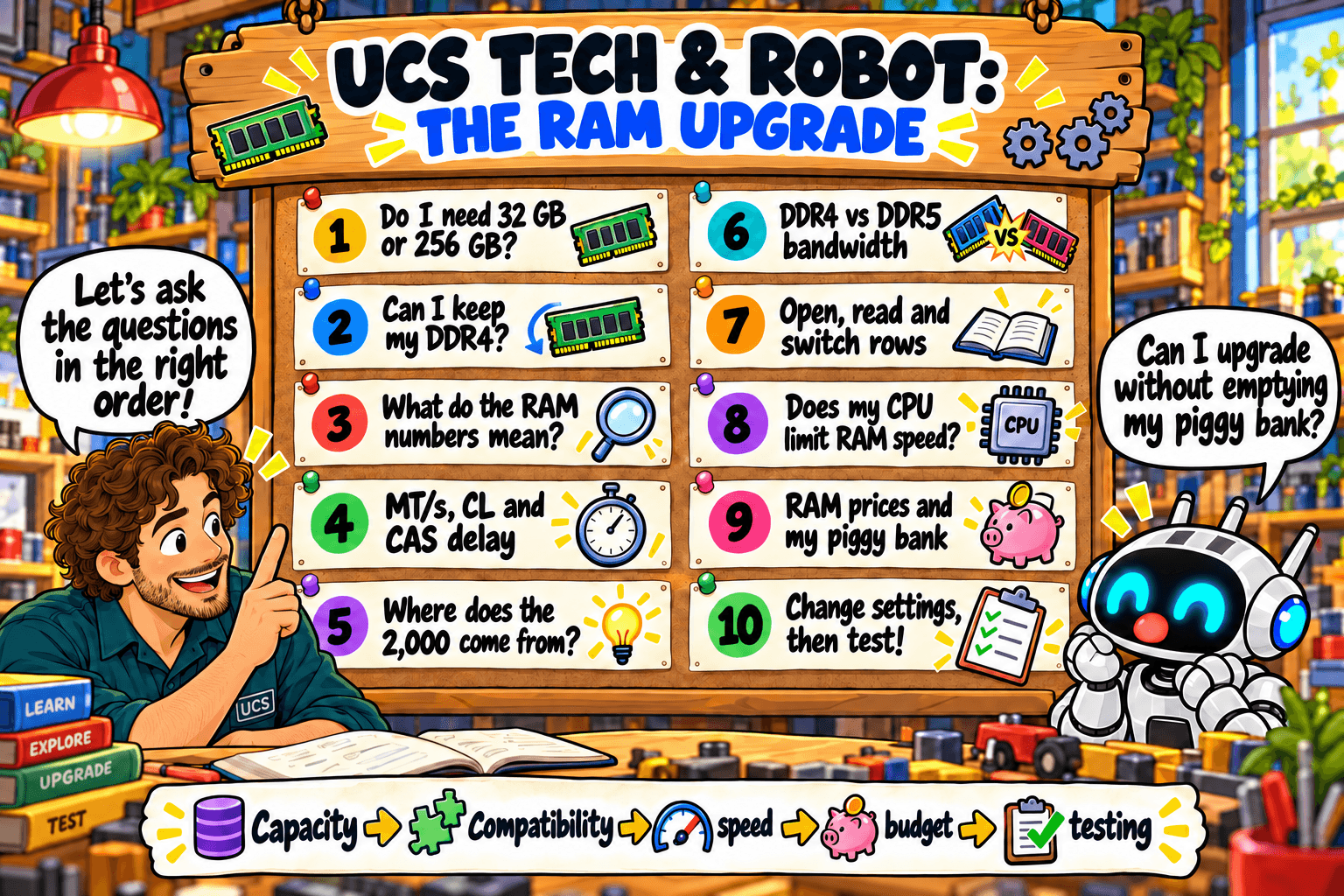
UCS Tech and Robot present the ten-part RAM learning journey

How this blog helps you buy better hardware

Buying IT hardware should not require a computer engineering degree. This blog turns specifications and marketing claims into simple questions you can answer before spending money.

What each guide explains

  • What the specification means in everyday use
  • Whether the part is compatible with your computer
  • How much performance you actually need
  • Which features are worth paying for
  • How to test an upgrade after installing it

Memory Series

The Robot’s RAM Upgrade sketches explain computer memory step by step. The Memory Series episodes and planned release dates are below:

  1. Available immediately — 32 GB or 256 GB: how much RAM do you actually need?
  2. Available immediately — Can you keep your DDR4 when upgrading your PC?
  3. Available immediately — RAM labels explained: capacity, MT/s and timings
  4. Wednesday 2026-10-28 — MT/s, CL and CAS delay: transfers, ticks or time?
  5. Wednesday 2026-11-04 — Where does the 2,000 come from? One RAM calculation explained
  6. Wednesday 2026-11-11 — DDR4 versus DDR5: how much data can my RAM move?
  7. Wednesday 2026-11-18 — Open, read, switch: what happens inside RAM?
  8. Wednesday 2026-11-25 — Does my CPU limit RAM speed? Robot returns with more questions
  9. Wednesday 2026-12-02 — RAM prices versus my piggy bank: buy now or wait?
  10. Wednesday 2026-12-09 — Change settings, then test: did my RAM upgrade actually help?

Each article follows the same simple format: the buyer’s question, the sketch, a plain-English explanation, a short checklist, a common mistake, and a practical recommendation.

RAM labels explained: capacity, MT/s and timings

EPISODE 3 · FRIDAY 23 OCTOBER 2026

1. The question

Which numbers on a memory kit help me choose the right upgrade?

2. The Sketch

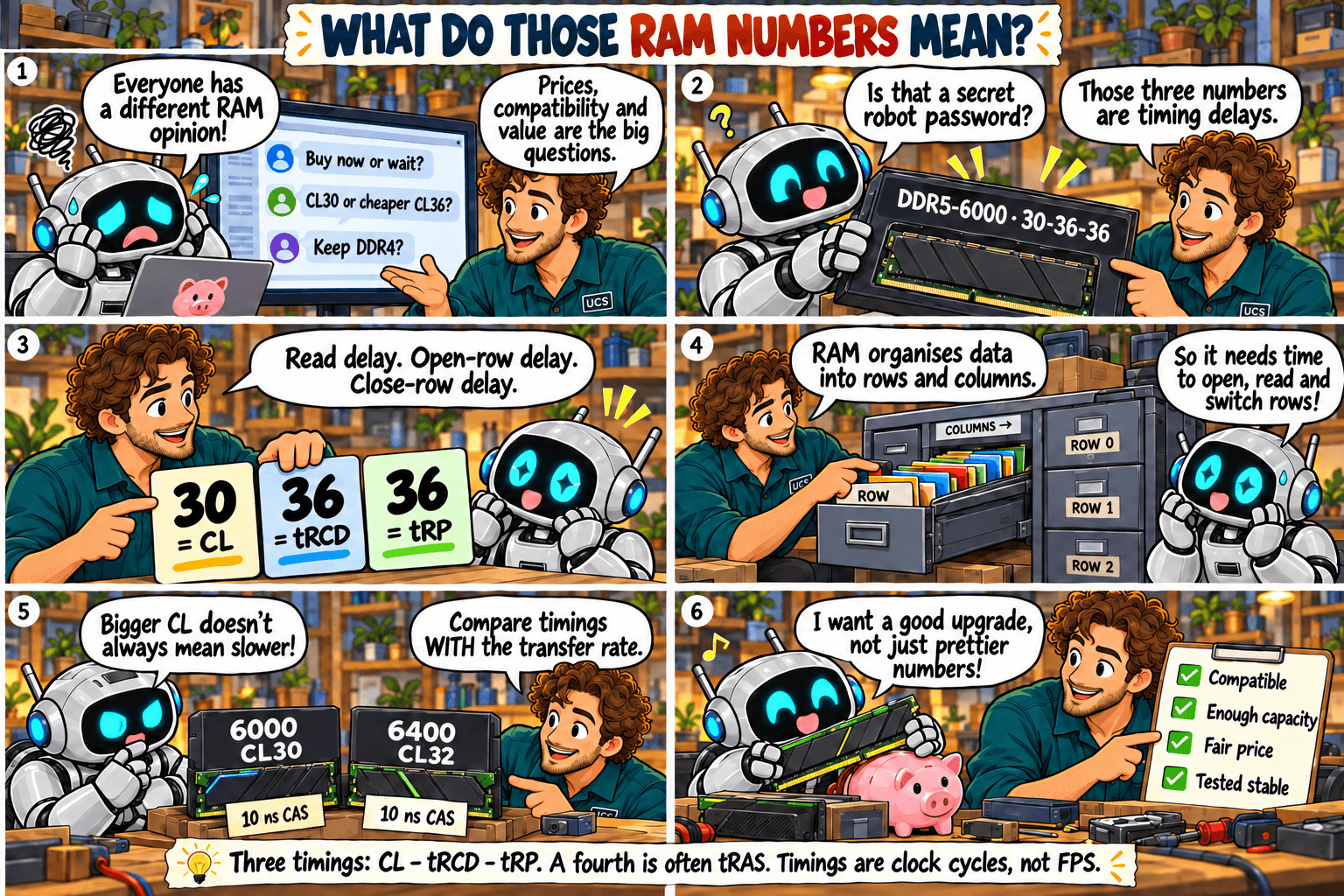
What do those RAM numbers mean? Decode the label

3. What it means

Quick rule: check capacity and compatibility first. Then compare MT/s and timings together.

A label such as 32 GB (2 × 16 GB), DDR4-3200, CL16-18-18 describes several different things:

Many kits list a fourth timing, tRAS, the minimum time a row remains active. Timing numbers count clock cycles, not nanoseconds. A lower CL does not automatically mean a shorter wait when the transfer rates differ.

For example, DDR4-3200 CL16 and DDR5-6000 CL30 both have a calculated 10 ns CAS delay. They still differ in bandwidth, architecture and other timings. The later episodes explain the calculation; CAS is only one part of total access latency.

4. What to check

  • Confirm the total capacity and kit layout, such as 2 × 16 GB.
  • Check the generation and exact kit against your platform documentation.
  • Compare MT/s and CL together, plus voltage and profile requirements.
  • Use the motherboard manual for slot placement; more sticks do not automatically mean more memory channels.
  • Distinguish the advertised XMP or EXPO profile from the settings the system actually runs.

5. Common mistake

Choosing the lowest CL alone, or assuming the speed printed on the box is automatically active after installation.

6. Practical recommendation

Choose a compatible kit with enough capacity, then use comparable application tests and price to assess faster options. Install it in the recommended slots, verify active settings and test stability. Pay for a speed premium only when it brings a useful benefit to your workload.

7. Sources and disclaimer

Technical review: 5 October 2026. Sketches simplify the concepts. Compatibility and results depend on the exact hardware and settings; check manufacturer documentation before purchase. Calculated timing is not a prediction of application performance.

Can you keep your DDR4 when upgrading your PC?

EPISODE 2 · FRIDAY 16 OCTOBER 2026

1. The question

Can I reuse my existing RAM when I change the CPU or motherboard?

2. The Sketch

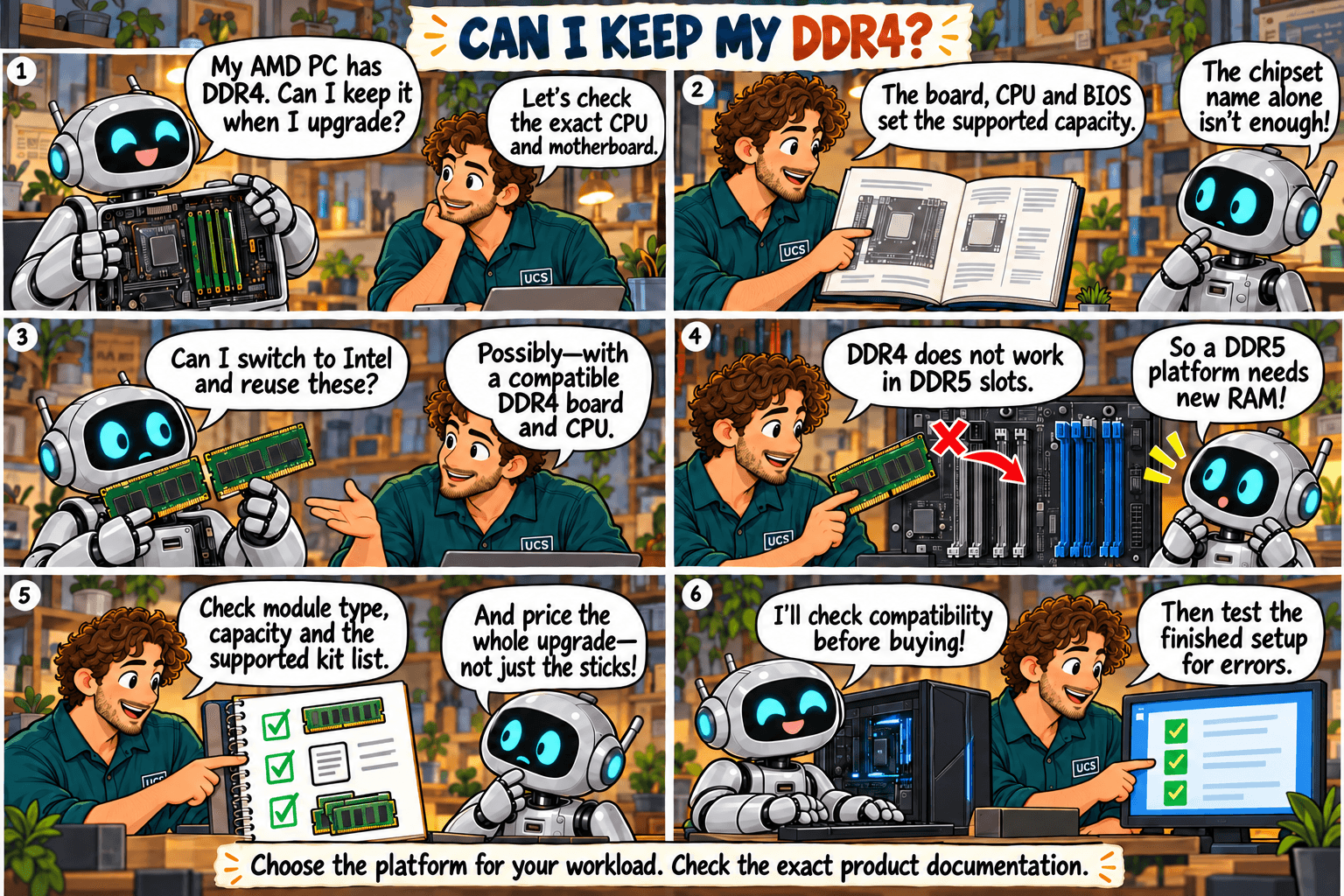
Can I keep my DDR4? The CPU and motherboard upgrade puzzle


3. What it means

Quick rule: reuse DDR4 only when the new motherboard and CPU combination explicitly supports your modules.

DDR4 and DDR5 are different memory generations. Their slots and electrical requirements differ: DDR4 does not work in a DDR5 slot. The processor brand alone does not answer the compatibility question.

Some Intel platforms support DDR4 with an appropriate board. That does not mean any Intel board will accept it. Likewise, moving from an AMD DDR4 desktop to a DDR5 desktop platform requires different RAM as well as compatible core components.

The supported capacity is a combined platform limit. Check the exact CPU, motherboard, BIOS and module configuration. A chipset label is not a complete specification, and registered server memory is not interchangeable with ordinary desktop memory.

4. What to check

  • Identify the exact CPU and motherboard models—not just AMD, Intel or the chipset.
  • Check DDR generation, module type, supported module capacity and total capacity.
  • Read the board’s memory support list or QVL and BIOS notes. QVL means qualified vendor list; it records tested configurations and is not necessarily exhaustive.
  • Check the required BIOS version and installation procedure before buying.
  • Compare the total CPU, board and RAM cost against keeping your current platform.

5. Common mistake

Assuming matching DDR generation guarantees compatibility, or that changing CPU brands guarantees more memory capacity.

6. Practical recommendation

Keep DDR4 when a supported upgrade meets your workload at a sensible total cost. Choose a new platform when the required capacity or performance justifies it. Buy a validated configuration where possible, then verify the active settings and test for errors.

7. Sources and disclaimer

Technical review: 5 October 2026. Sketches simplify the concepts. Compatibility and results depend on the exact hardware and settings; check manufacturer documentation before purchase. Calculated timing is not a prediction of application performance.

32 GB or 256 GB: How much RAM do you actually need?

EPISODE 1 · FRIDAY 3 OCTOBER 2026

1. The question

Will more memory make my computer faster—or am I paying for capacity I won’t use?

2. The Sketch

32 GB or 256 GB? How much RAM does Robot really need?


3. What it means

Quick rule: buy RAM to fit your workload. When there is enough memory already, adding unused capacity usually does little for performance.

RAM is the computer’s working space. If that space becomes insufficient, the operating system can move some data to storage. This can slow a busy system. More RAM helps when lack of capacity is the problem; it will not fix every slow application.

For a new gaming system, 32 GB is a sensible starting point to investigate, rather than a requirement for every game. Office use may need less; large projects, several virtual machines or specialist data work may need considerably more. Check your actual applications. System RAM is also separate from the dedicated memory on a graphics card.

4. What to check

  • Run your busiest normal workload and check memory usage. On Windows, start with Task Manager → Performance → Memory.
  • Check application requirements and whether slowdowns coincide with memory pressure.
  • Find the exact computer or motherboard model, CPU, installed modules and supported capacity.
  • Include installation and any required platform changes in your budget.

5. Common mistake

Buying 256 GB because it sounds faster, without evidence that the workload needs it.

6. Practical recommendation

If 32 GB comfortably fits your work, keep the savings for a component that addresses your real bottleneck. If you regularly run out, choose a supported upgrade with room for expected growth. A requirement for 256 GB needs a platform check before you order.

7. Sources and disclaimer

Technical review: 5 October 2026. Sketches simplify the concepts. Compatibility and results depend on the exact hardware and settings; check manufacturer documentation before purchase. Calculated timing is not a prediction of application performance.