Robot’s RAM Upgrade: Memory Buying Basics Introduction

Robot’s RAM Upgrade is a ten-part sketch guide to buying computer memory. Robot wants 256 GB of RAM. His piggy bank wants answers.

Our buying rule: choose enough capacity, confirm compatibility, compare transfer rate and latency, then test the result.

UCS Tech and Robot present the ten-part RAM learning journey
Select the sketch to open it full size.

A new episode is published each Wednesday.

  1. 32 GB or 256 GB: How much RAM do you actually need?
  2. Can you keep your DDR4 when upgrading your PC?
  3. RAM labels explained: capacity, MT/s and timings
  4. MT/s, CL and CAS delay: transfers, ticks or time? (28 October)
  5. Where does the 2,000 come from? One RAM calculation explained (4 November)
  6. DDR4 versus DDR5: how much data can my RAM move? (11 November)
  7. Open, read, switch: what happens inside RAM? (18 November)
  8. Does my CPU limit RAM speed? (25 November)
  9. RAM prices versus my piggy bank: buy now or wait? (2 December)
  10. Change settings, then test (9 December)
Start with Episode 1

All episodes

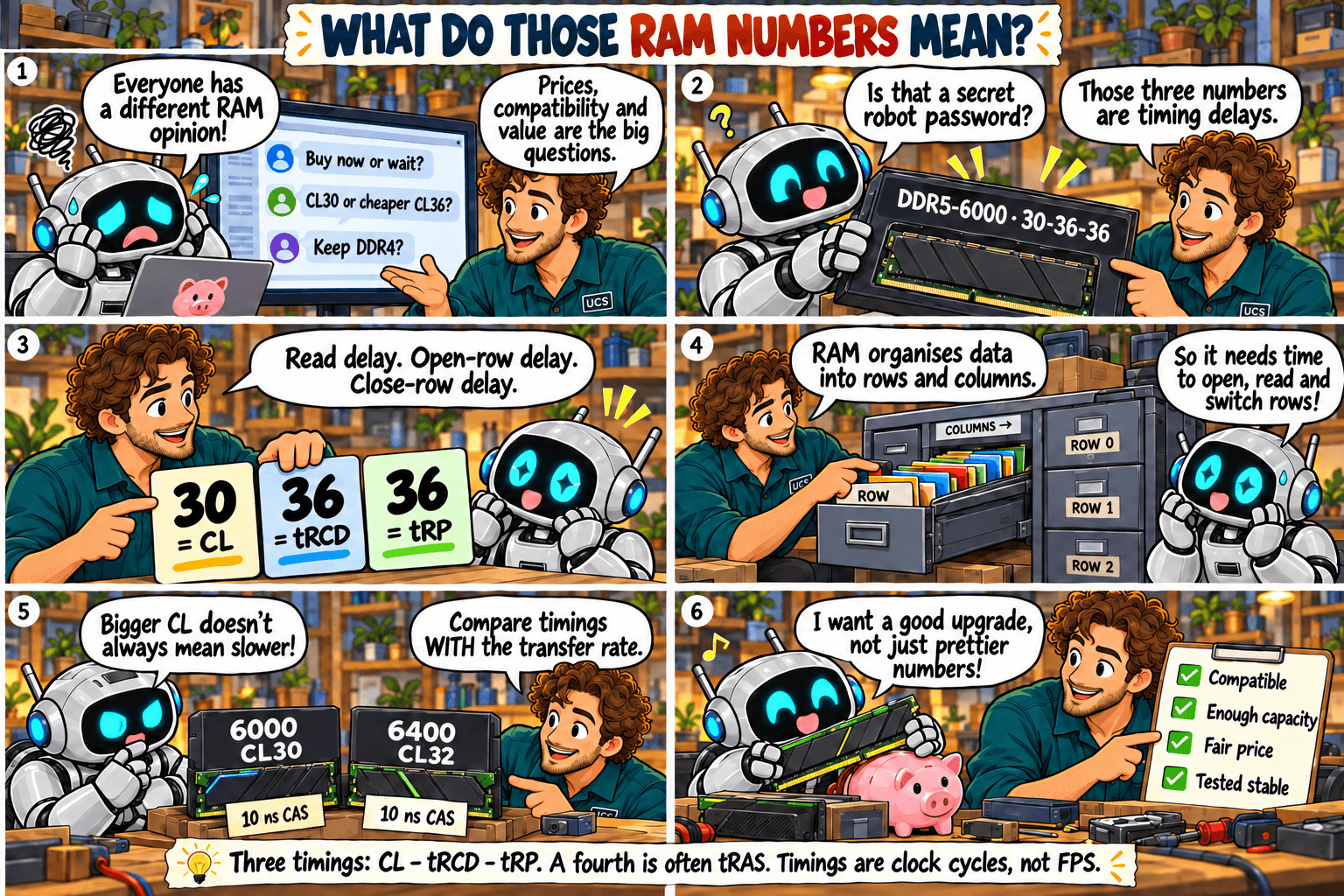
RAM labels explained: capacity, MT/s and timings

Robot’s RAM Upgrade · Episode 3 of 10

The question: which numbers on a memory kit help me choose the right upgrade?

What do those RAM numbers mean? Decode the label
Three timings: CL, tRCD and tRP. A fourth is often tRAS. Timings are clock cycles, not FPS.Select the sketch to open it full size.

Quick rule: check capacity and compatibility first. Then compare MT/s and timings together, never one alone.
Common mistake: choosing the lowest CL alone, or assuming the speed on the box is active after installation.

What it means

Take the label 32 GB (2 × 16 GB), DDR4-3200, CL16-18-18:

  • 32 GB: total capacity of the kit.
  • 2 × 16 GB: two modules of 16 GB each.
  • DDR4: the memory generation. It must match your motherboard.
  • 3200: the transfer rate in MT/s (megatransfers per second). Higher is faster.
  • CL16: CAS latency, the wait before data is returned, counted in clock cycles.
  • 18-18: two further timings (tRCD and tRP), also in clock cycles. Some kits list a fourth, tRAS.

Timings count clock cycles, not time: DDR4-3200 CL16 and DDR5-6000 CL30 both wait 10 nanoseconds. Episodes 4 and 5 explain why.

What to check

  • Total capacity and kit layout, such as 2 × 16 GB.
  • The generation and exact kit against your motherboard’s documentation.
  • MT/s and CL together, plus the voltage and profile the kit needs.
  • Slot placement in the motherboard manual. More sticks do not mean more memory channels.
  • The speed your system is running at. The advertised XMP or EXPO speed is off until you enable it in the BIOS. Run a memory test afterwards.

Not sure what fits? Send us your computer model and what you use it for. We check compatibility before you buy.

Ask us to check

All episodes

Sources

Technical review: 5 October 2026. General guidance. Check the documentation for your exact hardware before you buy. Full notice.

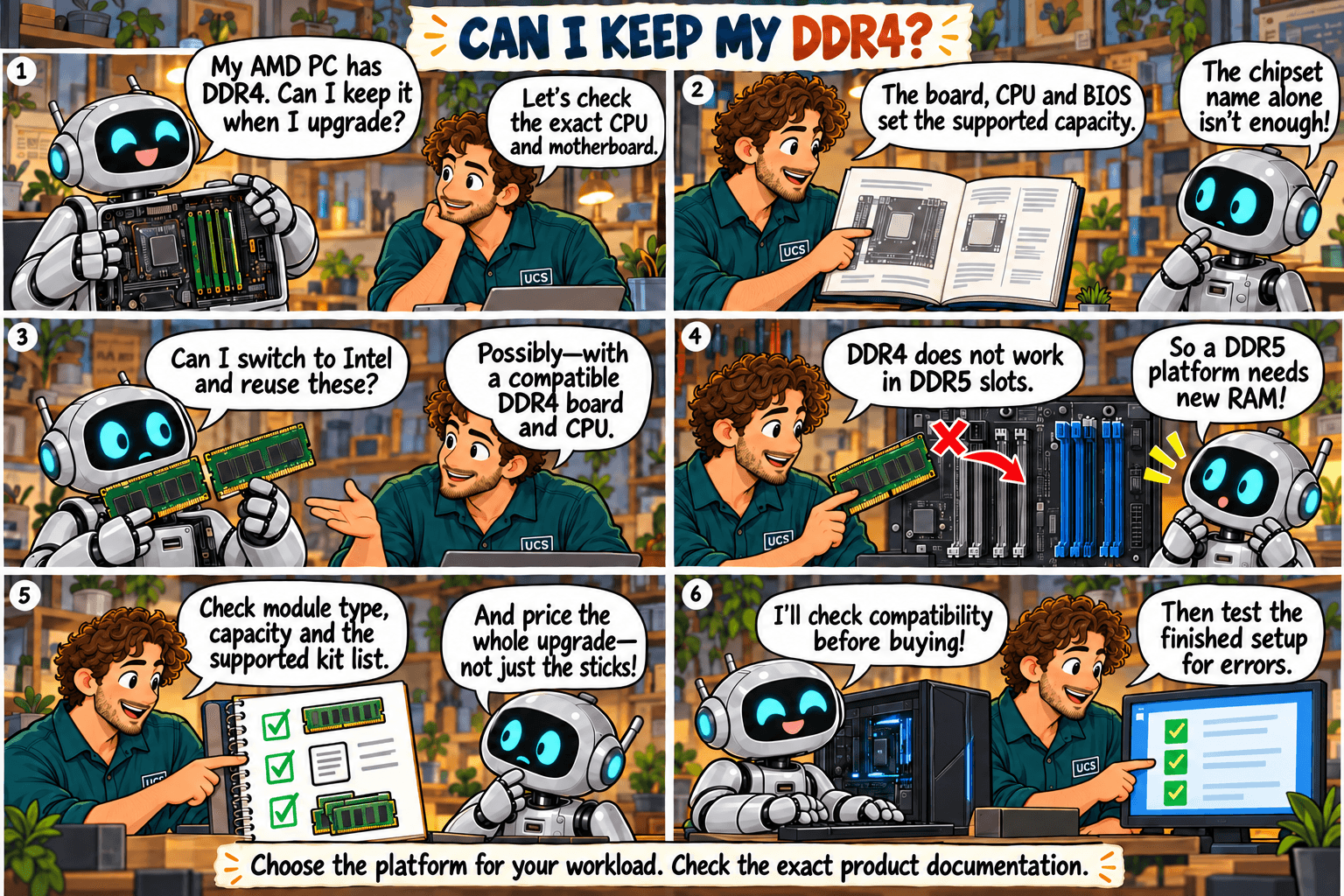
Can you keep your DDR4 when upgrading your PC?

Robot’s RAM Upgrade · Episode 2 of 10

The question: can I reuse my existing RAM when I change the CPU or motherboard?

Can I keep my DDR4? The CPU and motherboard upgrade puzzle
Choose the platform for your workload. Check the exact product documentation.Select the sketch to open it full size.

Quick rule: reuse DDR4 only if the new motherboard and CPU both support your exact modules.
Common mistake: assuming the same DDR generation guarantees compatibility, or that switching CPU brand gives you more memory capacity.

What it means

  • DDR4 does not fit a DDR5 slot. The two generations use different slots and voltages.
  • The CPU brand does not settle it. Some Intel platforms support DDR4, but only on a DDR4 motherboard.
  • Moving from an AMD DDR4 desktop to a DDR5 one means new RAM, plus a new CPU and motherboard.
  • Maximum capacity is set by the CPU, motherboard and BIOS together. The chipset name alone does not tell you.
  • Server memory (registered) does not work in ordinary desktops.

What to check

  • Identify the exact CPU and motherboard models, not just the brand or chipset.
  • Check DDR generation, module type, capacity per module and total capacity.
  • Read the motherboard’s memory support list (QVL) and BIOS notes. The list shows tested kits and may not cover every kit that works.
  • Check which BIOS version is required before you buy.
  • Compare the total cost of CPU, motherboard and RAM against keeping your current system.

Our recommendation

Keep your DDR4 if a supported upgrade handles your workload at a lower total cost. Otherwise buy a tested CPU, motherboard and RAM combination.

Not sure what fits? Send us your computer model and what you use it for. We check compatibility before you buy.

Ask us to check

All episodes

Sources

Technical review: 5 October 2026. General guidance. Check the documentation for your exact hardware before you buy. Full notice.

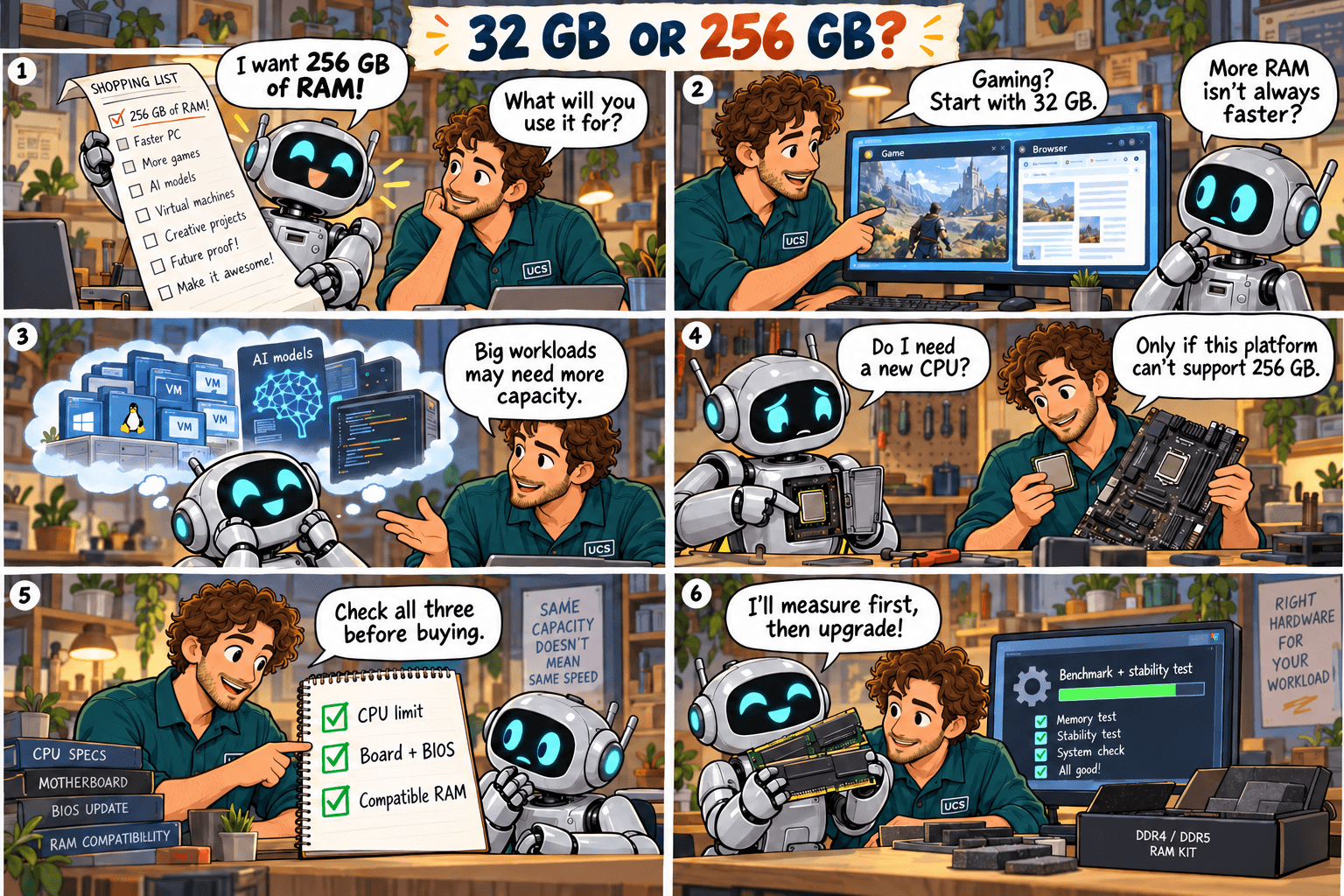
32 GB or 256 GB: How much RAM do you actually need?

Robot’s RAM Upgrade · Episode 1 of 10

The question: will more RAM make my computer faster, or am I paying for capacity I won’t use?

32 GB or 256 GB? How much RAM does Robot really need?
Select the sketch to open it full size.

Quick rule: buy RAM to fit your workload. Capacity you never fill does not make a computer faster.
Common mistake: buying 256 GB because it sounds faster, with no evidence the workload needs it.

What it means

RAM is the computer’s working space. When it runs out, the operating system moves data to storage, which is far slower. More RAM fixes that problem and no other.

  • Gaming: start at 32 GB.
  • Office work: often less.
  • Large projects, several virtual machines, specialist data work: often much more.

Graphics card memory is separate. Adding system RAM does not increase it.

What to check

  • Run your busiest normal workload and read memory usage. On Windows: Task Manager → Performance → Memory.
  • Note whether slowdowns happen when memory is nearly full.
  • Find your exact computer or motherboard model, CPU, installed modules and supported capacity.
  • Budget for installation and any other parts the upgrade requires.

Our recommendation

If 32 GB fits your work, spend the savings on the part that is slowing you down. If you regularly run out, buy a supported upgrade with room to grow. For 256 GB, confirm your CPU and motherboard support it first.

Not sure what fits? Send us your computer model and what you use it for. We check compatibility before you buy.

Ask us to check

All episodes

Sources

Technical review: 5 October 2026. General guidance. Check the documentation for your exact hardware before you buy. Full notice.