
Open, read, switch: what happens inside RAM?

Robot’s RAM Upgrade · Episode 7 of 10

The question: why can two kits with the same CAS delay behave differently?
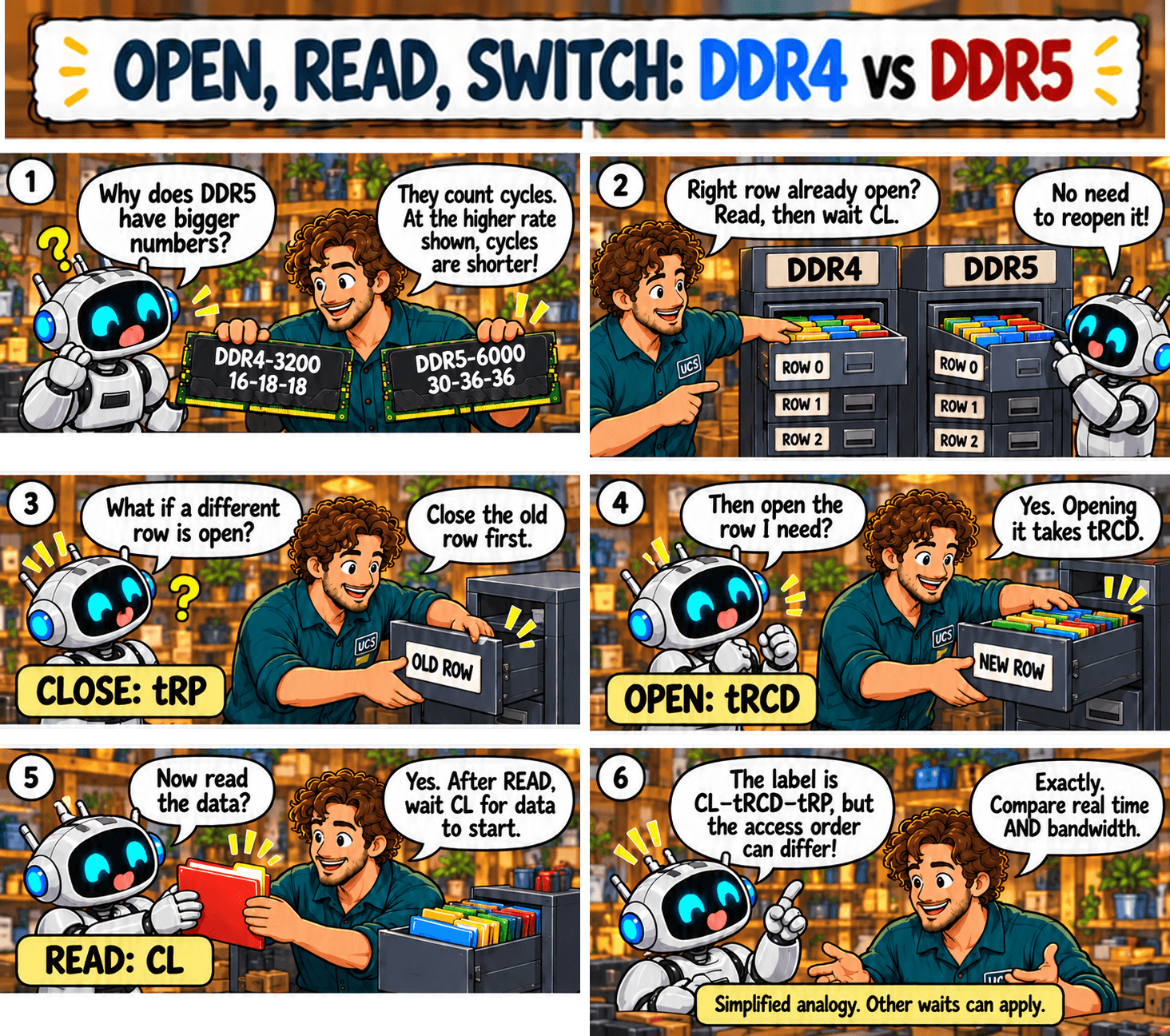
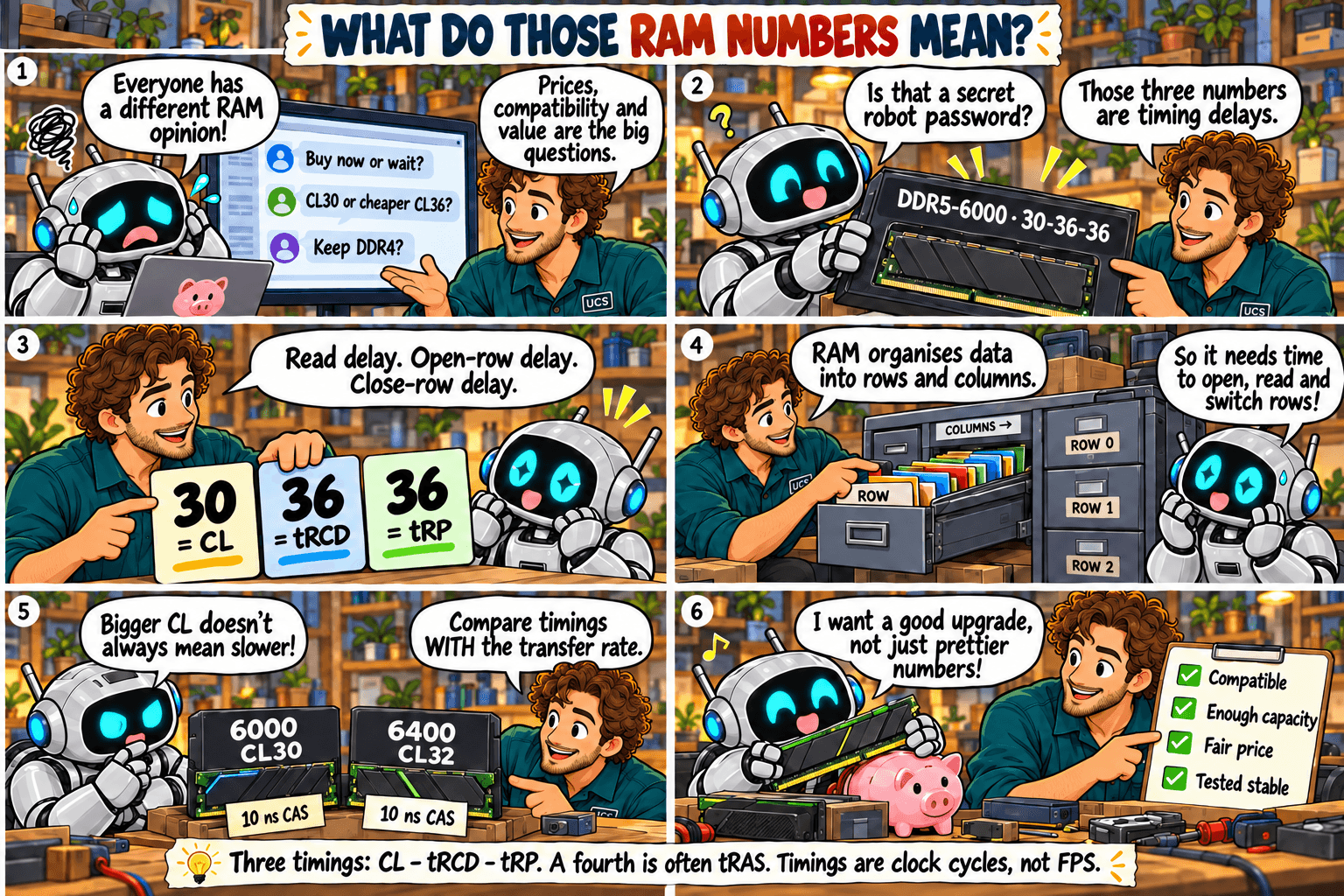
Open, read, switch: what happens inside RAM?
Select the sketch to open it full size.

Quick rule: CAS delay is one of three waits. Compare CL, tRCD and tRP in nanoseconds.
Common mistake: treating CAS delay as the whole memory access time.

What it means

Think of memory as a filing cabinet, where each row of data is a drawer:

  • The right drawer is already open: read the data. The wait is CL.
  • The drawer is closed: open it first (tRCD), then read (CL).
  • A different drawer is open: close it (tRP), open the right one (tRCD), then read (CL).
KitCLtRCDtRP
DDR4-3200 CL16-18-1810 ns11.25 ns11.25 ns
DDR5-6000 CL30-36-3610 ns12 ns12 ns

Both kits have a 10 ns CAS delay, but the DDR5 kit takes slightly longer to open or close a row. Not every read pays all three waits. These figures leave out delays in the CPU and memory controller.

The calculator in Episode 5 converts all three timings to nanoseconds.

What to check

  • CL, tRCD and tRP, not CL alone.
  • How your applications use memory. Some reuse open rows, some jump between them.
  • Measured total latency.

Not sure what fits? Send us your computer model and what you use it for. We check compatibility before you buy.

Ask us to check

All episodes

Sources

General guidance. Check the documentation for your exact hardware before you buy. Full notice.
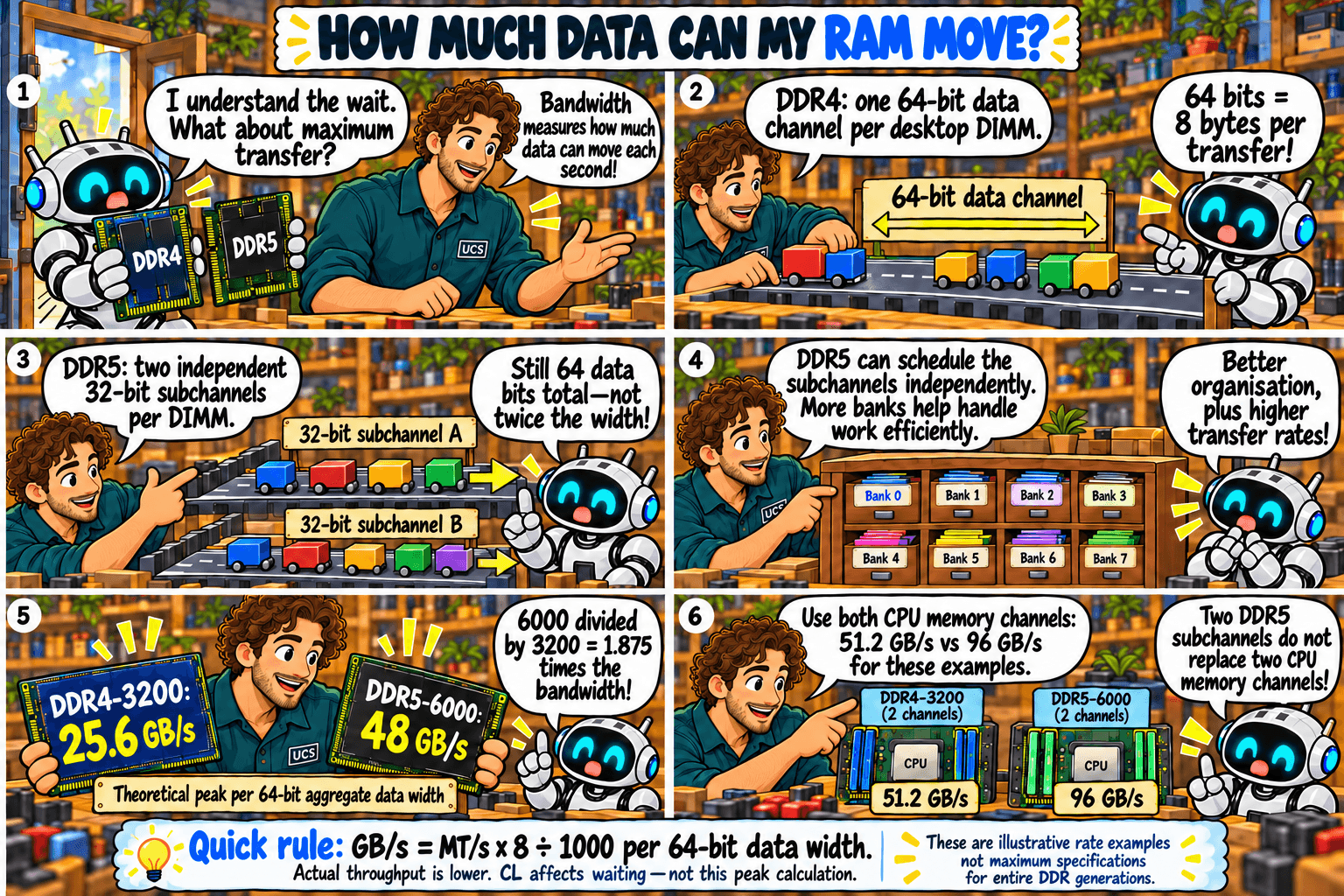
DDR4 versus DDR5: how much data can my RAM move?

Robot’s RAM Upgrade · Episode 6 of 10

The question: how much more data can DDR5 move than DDR4?

DDR4 versus DDR5: how much data can my RAM move?
Quick rule: GB/s = MT/s × 8 ÷ 1,000 per 64-bit data width. Actual throughput is lower. CL affects waiting, not this peak calculation. These are example rates, not the maximum for either DDR generation.Select the sketch to open it full size.

Quick rule: peak GB/s = MT/s × 8 ÷ 1,000 for each 64-bit memory channel.
Common mistake: assuming DDR5’s two subchannels double the data width or replace dual-channel installation.

What it means

Bandwidth is how much data memory can move each second. Each transfer on a 64-bit channel moves 8 bytes.

KitOne channelTwo channels
DDR4-320025.6 GB/s51.2 GB/s
DDR5-600048 GB/s96 GB/s
  • The ratio follows the transfer rate. 6,000 ÷ 3,200 = 1.875 times the peak bandwidth.
  • At the same MT/s, DDR4 and DDR5 have the same calculated peak.
  • DDR5 splits each module into two 32-bit subchannels. The total is still 64 bits, so bandwidth does not double and you still need modules in both CPU memory channels.
  • These are peak figures for example kits. Real throughput is lower, and CL plays no part in the calculation.

What to check

  • The rated MT/s and the MT/s your system is running at.
  • That both CPU memory channels are populated.
  • Measured bandwidth, and whether your workload needs it.

Not sure what fits? Send us your computer model and what you use it for. We check compatibility before you buy.

Ask us to check

All episodes

Sources

General guidance. Check the documentation for your exact hardware before you buy. Full notice.
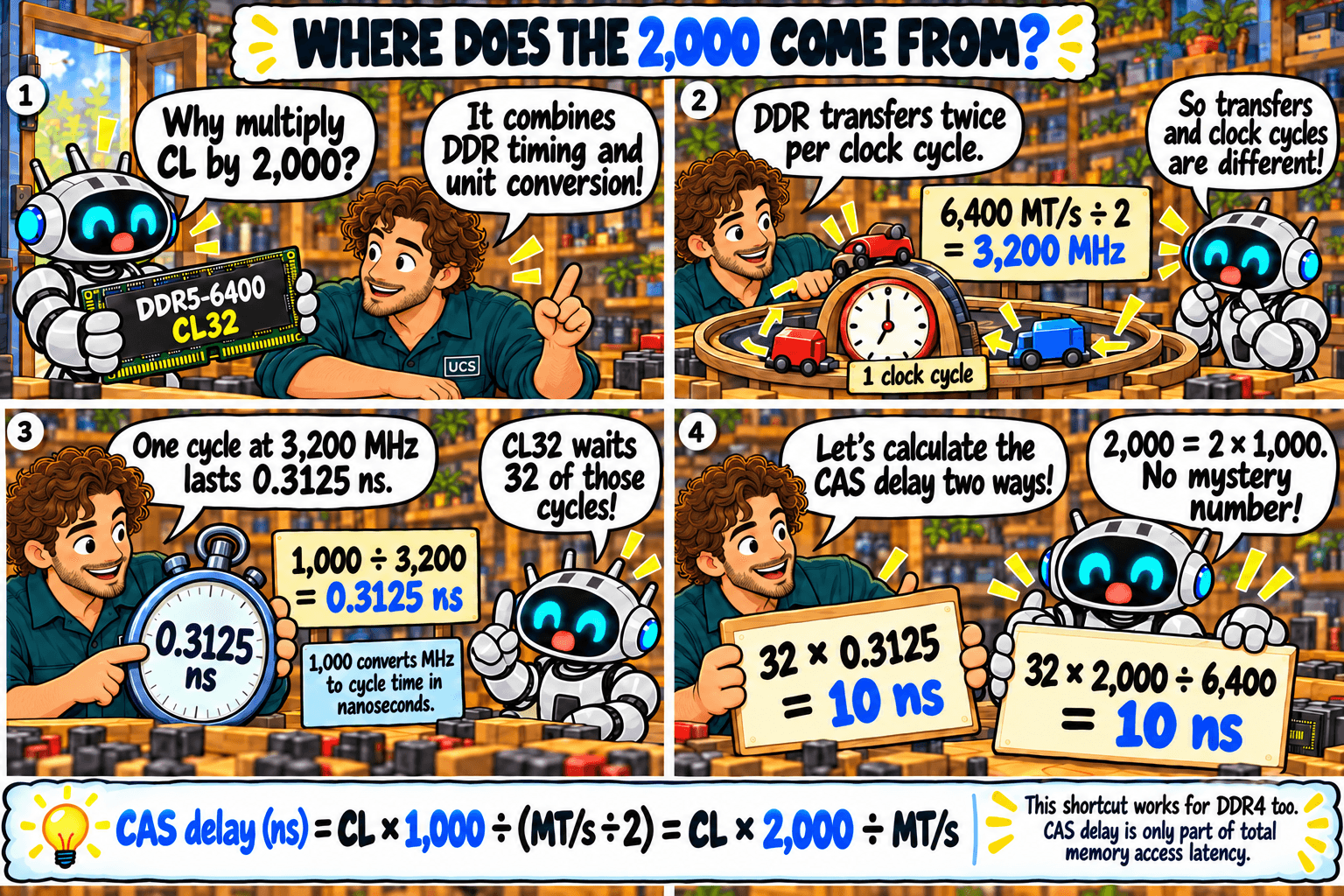
Where does the 2,000 come from? One RAM calculation explained

Robot’s RAM Upgrade · Episode 5 of 10

The question: how do I calculate CAS delay, and where does the 2,000 come from?

Where does the 2,000 come from? One RAM calculation explained
CAS delay (ns) = CL × 1,000 ÷ (MT/s ÷ 2) = CL × 2,000 ÷ MT/s. The shortcut works for DDR4 too.Select the sketch to open it full size.

Quick rule: CAS delay in nanoseconds = CL × 2,000 ÷ MT/s.
Common mistake: using the advertised transfer rate as the clock frequency. The clock runs at half that figure.

What it means

The 2,000 is 2 × 1,000:

  • The 2: DDR means double data rate. Memory sends data twice per clock cycle, so the clock speed in MHz is half the MT/s figure. DDR5-6400 runs a 3,200 MHz clock.
  • The 1,000: a 1 MHz clock has a cycle of 1,000 nanoseconds (ns), so cycle time in ns = 1,000 ÷ MHz.
  • Together: 1,000 ÷ (MT/s ÷ 2) = 2,000 ÷ MT/s.

Worked example, DDR5-6400 CL32:

  • Clock speed: 6,400 ÷ 2 = 3,200 MHz
  • Cycle time: 1,000 ÷ 3,200 = 0.3125 ns
  • CAS delay: 32 × 0.3125 = 10 ns
  • Shortcut: 32 × 2,000 ÷ 6,400 = 10 ns

The same shortcut works for DDR4.

RAM timing calculator

Enter the numbers from a kit’s label. Add a second kit to compare. Leave any timing blank if the label does not list it.

Kit A
Kit B (optional)

The calculator converts label numbers into time. It does not predict how fast your applications will run.

What to check

  • The transfer rate in MT/s.
  • CL in clock cycles.
  • That your result is in nanoseconds.

Not sure what fits? Send us your computer model and what you use it for. We check compatibility before you buy.

Ask us to check

All episodes

Sources

General guidance. Check the documentation for your exact hardware before you buy. Full notice.
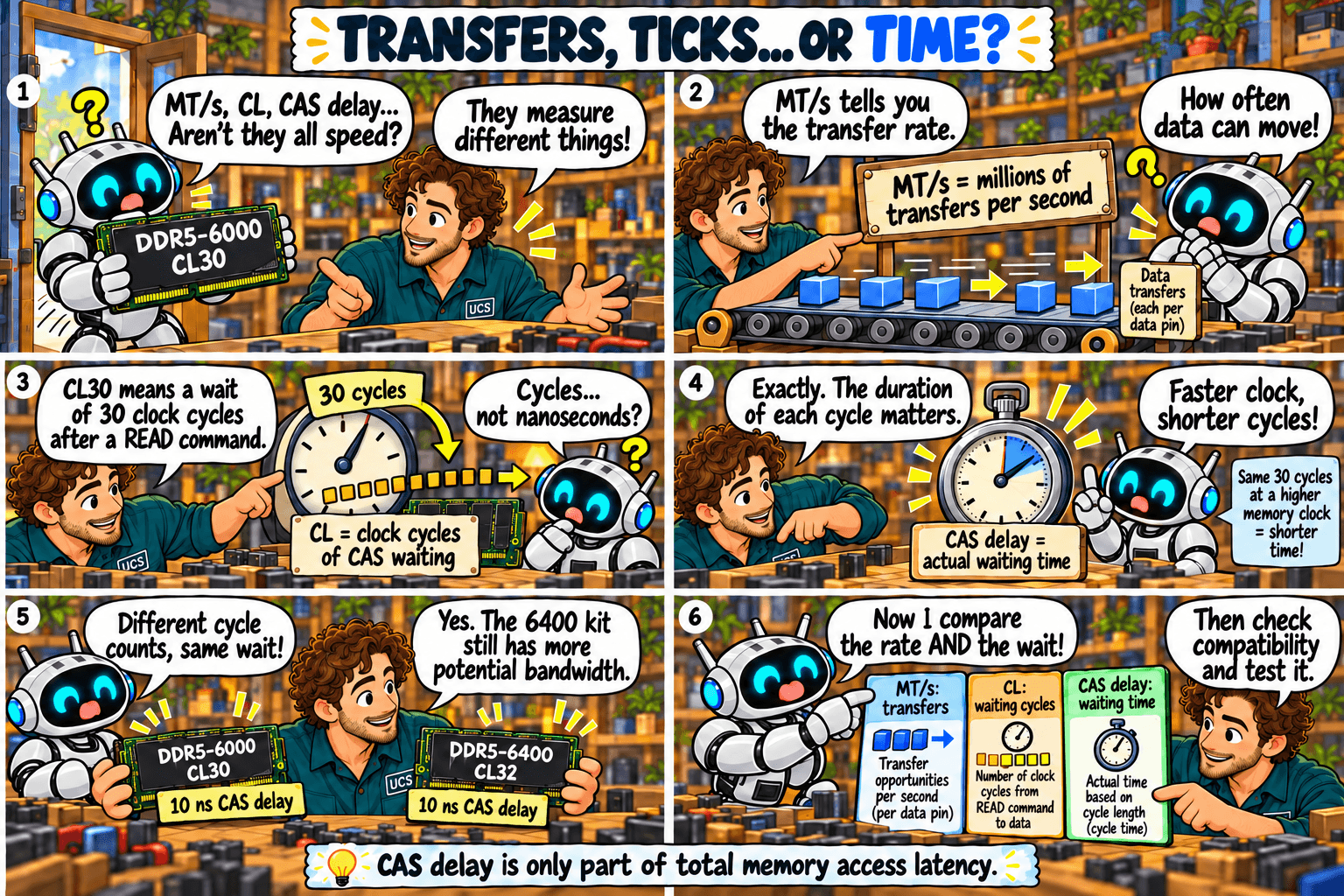
MT/s, CL and CAS delay: transfers, ticks or time?

Robot’s RAM Upgrade · Episode 4 of 10

The question: is a higher MT/s or a lower CL the better buy?

MT/s, CL and CAS delay: transfers, ticks or time?
CAS delay is only part of total memory access latency.Select the sketch to open it full size.

Quick rule: compare MT/s and CL together. Convert CL to nanoseconds before comparing kits of different speeds.
Common mistake: assuming CL32 must be slower than CL30.

What it means

The three terms measure different things:

  • MT/s: millions of transfers per second. It is how often data can move. Higher is faster.
  • CL: CAS latency. CAS is “column address strobe”, the signal that tells the memory which column of data to read. CL is the number of clock cycles the memory waits between a read command and the first data.
  • CAS delay: the same wait measured in nanoseconds (ns). It is not a second, separate delay.

Faster memory has shorter cycles, so a higher CL on a faster kit can be the same wait.

KitCycle timeCAS delay
DDR4-3200 CL160.625 ns10 ns
DDR5-6000 CL300.333 ns10 ns
DDR5-6000 CL360.333 ns12 ns
DDR5-6400 CL320.3125 ns10 ns
  • Same wait, more data. DDR5-6400 CL32 and DDR5-6000 CL30 both wait 10 ns, and the 6400 kit can move more data per second.
  • At the same MT/s, lower CL is faster. DDR5-6000 CL30 beats DDR5-6000 CL36 by 2 ns.
  • CAS delay is one part of total access time. Use it to compare kits, not to predict application speed.

Episode 5 shows the calculation.

What to check

  • Both MT/s and CL, never one alone.
  • The CAS delay in nanoseconds.
  • Benchmarks of your applications on a comparable CPU.

Not sure what fits? Send us your computer model and what you use it for. We check compatibility before you buy.

Ask us to check

All episodes

Sources

General guidance. Check the documentation for your exact hardware before you buy. Full notice.
Memory market briefing, October 2026: why prices are still rising

Memory for Business · Market briefing · October 2026

The question: will memory cost more or less in the coming months, and what should we do about it?

Quick rule: analysts expect prices to keep rising into 2027. Buy what your approved projects need, and do not rely on a quote past its validity date.

What is happening

  • Contract prices are still rising. TrendForce expects DRAM contract prices to rise 10–15% in the last quarter of 2026 compared with the quarter before, and NAND flash 15–20%.
  • Server memory is short. Server DRAM is expected to stay undersupplied this quarter as demand for server modules grows.
  • Production is going to AI. Makers are directing their newest production lines to high-performance server products. Memory for AI accelerators (HBM) uses three to four times the factory capacity of standard memory for the same amount of storage.
  • PC memory may tighten next. TrendForce expects PC DRAM supply could fall in 2027 as capacity moves to servers.

What pushes prices up or down

Up
  • AI server demand.
  • Three makers control about 90% of supply and are favouring server products.
  • DDR4 is being wound down.
  • Demand for enterprise SSDs is growing fast, which lifts storage prices too.
Down
  • New factories. SK hynix’s M15X is reported to start in mid-2027 and Samsung’s P5 in late 2028.
  • Weaker PC and phone sales as component costs rise.
  • NAND flash may move from shortage towards surplus in the second half of 2027.
  • CXMT is growing its output.

When it might ease

TrendForce expects DRAM to stay tight through 2028, with new factories adding meaningful supply only from the second half of 2027. These are forecasts, and memory forecasts have been revised before.

What it means for your purchase

  • Budget: allow for higher memory and SSD costs in any PC or server quote for delivery in 2026–27.
  • Quotes: expect short validity. Confirm price and lead time in writing before you raise a purchase order.
  • Timing: once a project is approved, order the memory with the server, not later.
  • DDR4 systems: if you plan to keep them, order upgrades and spares while supply lasts.
  • Do not over-buy. Stock you do not need ties up budget, and no forecast is certain.

New to the terms? See business memory at a glance.

Buying for an organisation? Send us your hardware schedule or server models. We return supported part numbers, pricing and lead time.

Send us your schedule

Sources

Market reporting as at 10 October 2026, not a price forecast or financial advice. Prices in Australia also depend on the exchange rate, freight and local stock. Full notice.

Business memory at a glance: types, makers and what moves the price

Memory for Business · Overview

The question: we are buying memory for PCs or servers. What do we need to know first?

Quick rule: match the exact machine, buy a supported part number, and confirm price and lead time in writing.

Computer memory at a glanceMind map with eight branches: memory for PCs and laptops, servers, AI and graphics, storage, chip makers, module brands, what moves the price, and what to check before you buy. Each branch is explained in the text below.PCs and laptopsDDR4 and DDR5UDIMM (desktop)SODIMM (laptop)LPDDR (soldered)ServersRDIMM and LRDIMMECC error correctionDDR5 is currentCXL expansionAI and graphicsHBM (AI accelerators)GDDR (graphics)StorageSSDs (NAND flash)Long-term storageChip makersSamsung 39%SK hynix 26%Micron 25%CXMT 7%Module brandsDell, HPE, LenovoSamsung, SK hynixMicronKingstonWhat moves priceAI server demandFew, slow factoriesDDR4 winding downContract vs spotBefore you buyExact machine modelSupported part listWarranty termsLead timeComputer memoryChip maker figures: share of DRAM revenue, Q2 2026 (Counterpoint Research)

Types of memory

  • PCs and laptops: DDR4 or DDR5, as UDIMM modules in desktops and SODIMM in laptops. Many thin laptops use LPDDR soldered to the board, which cannot be upgraded.
  • Servers: registered modules (RDIMM, or LRDIMM for the largest capacities) with ECC, which corrects memory errors. Server and desktop modules are not interchangeable. Recent servers can also add memory through CXL expansion modules.
  • AI and graphics: HBM is built into AI accelerators and GDDR into graphics cards. You do not buy them separately, but they are made in the same factories as your server memory.
  • Storage is separate: SSDs use NAND flash and keep data when the power is off. Memory does not.

Who makes it

  • Chips: three companies make about 90% of the world’s memory chips (DRAM).
Chip makerShare of DRAM revenue, Q2 2026
Samsung39%
SK hynix26%
Micron25%
CXMT7%
  • Modules: Dell, HPE and Lenovo sell memory under their own part numbers, built on those chips. Samsung, SK hynix and Micron also sell modules directly, and Kingston is the best-known independent module maker.

What moves the price

  • AI servers take a growing share of production.
  • Factories are few and take years to build.
  • DDR4 is being wound down, so older systems compete for a shrinking supply.
  • Contract and spot prices differ. Large buyers pay contract prices set each quarter. Smaller orders follow the spot market, which moves faster.

Our market briefing covers what is happening now.

Before you buy

  • The exact server or PC model, and its supported memory list.
  • Module type, capacity per module and number of free slots. Fill memory channels evenly.
  • The same part number across a fleet.
  • Whether the system maker’s support covers third-party modules.
  • Lead time, and how long the quote is valid.

Buying for an organisation? Send us your hardware schedule or server models. We return supported part numbers, pricing and lead time.

Send us your schedule

Sources

General guidance. Check the documentation for your exact hardware before you buy. Full notice.
UCS Buying Guides: Copyright and permitted use

The UCS Buying Guides are published by Unlimited Computer Services Pty Ltd. To the extent permitted by law, Unlimited Computer Services owns, or is licensed to use, the rights in the articles, sketches, layouts and other original material in the guides.

How the guides are made

The sketches are created with AI image tools under our direction and reviewed by our staff. The articles are prepared with AI assistance and checked by our technical staff before publication.

What you may do

  • Read, link to and share the public address of any guide.
  • Quote a short extract for commentary, review or education, provided you name Unlimited Computer Services and link to the original post.

What you may not do without our permission

By using this site you agree not to:

  • Copy or republish a whole article or sketch.
  • Alter or crop a sketch, remove notices from it, or redistribute it.
  • Use the articles or sketches on another website, or in a product, course, advertisement, catalogue or commercial service.
  • Present UCS material as your own, or suggest that Unlimited Computer Services endorses another product or service.

These conditions apply to all material in the guides, whether or not copyright protects a particular item.

Names and characters

“Unlimited Computer Services”, “UCS Buying Guides”, “Robot’s RAM Upgrade” and the Robot and UCS technician characters identify our guides. Do not use them in a way that suggests a connection with us.

Third-party material

Some guides refer to manufacturers, products, tools, trade marks and external sources. Those names and materials belong to their owners. A link to a third party does not give you permission to copy that party’s material.

Permission requests

To reproduce an article, sketch or other material, ask us first. Tell us which material, how much of it, where it will appear, and whether the use is commercial.

If you believe we have used your material

Contact us with the details. We will review it and remove or correct the material where appropriate.

Educational information

The guides are general educational information. Hardware compatibility and performance depend on the exact system, components and settings. Check the manufacturer’s documentation before you buy or change hardware.

This notice is a site policy, not legal advice. Copyright rules and exceptions depend on the circumstances and the law that applies. For general Australian information, see the Attorney-General’s Department guidance on copyright users and copyright basics.

Last updated: 10 October 2026.

RAM labels explained: capacity, MT/s and timings

Robot’s RAM Upgrade · Episode 3 of 10

The question: which numbers on a memory kit help me choose the right upgrade?

What do those RAM numbers mean? Decode the label
Three timings: CL, tRCD and tRP. A fourth is often tRAS. Timings are clock cycles, not FPS.Select the sketch to open it full size.

Quick rule: check capacity and compatibility first. Then compare MT/s and timings together, never one alone.
Common mistake: choosing the lowest CL alone, or assuming the speed on the box is active after installation.

What it means

Take the label 32 GB (2 × 16 GB), DDR4-3200, CL16-18-18:

  • 32 GB: total capacity of the kit.
  • 2 × 16 GB: two modules of 16 GB each.
  • DDR4: the memory generation. It must match your motherboard.
  • 3200: the transfer rate in MT/s (megatransfers per second). Higher is faster.
  • CL16: CAS latency, the wait before data is returned, counted in clock cycles.
  • 18-18: two further timings (tRCD and tRP), also in clock cycles. Some kits list a fourth, tRAS.

Timings count clock cycles, not time: DDR4-3200 CL16 and DDR5-6000 CL30 both wait 10 nanoseconds. Episodes 4 and 5 explain why.

What to check

  • Total capacity and kit layout, such as 2 × 16 GB.
  • The generation and exact kit against your motherboard’s documentation.
  • MT/s and CL together, plus the voltage and profile the kit needs.
  • Slot placement in the motherboard manual. More sticks do not mean more memory channels.
  • The speed your system is running at. The advertised XMP or EXPO speed is off until you enable it in the BIOS. Run a memory test afterwards.

Not sure what fits? Send us your computer model and what you use it for. We check compatibility before you buy.

Ask us to check

All episodes

Sources

Technical review: 5 October 2026. General guidance. Check the documentation for your exact hardware before you buy. Full notice.
Can you keep your DDR4 when upgrading your PC?

Robot’s RAM Upgrade · Episode 2 of 10

The question: can I reuse my existing RAM when I change the CPU or motherboard?

Can I keep my DDR4? The CPU and motherboard upgrade puzzle
Choose the platform for your workload. Check the exact product documentation.Select the sketch to open it full size.

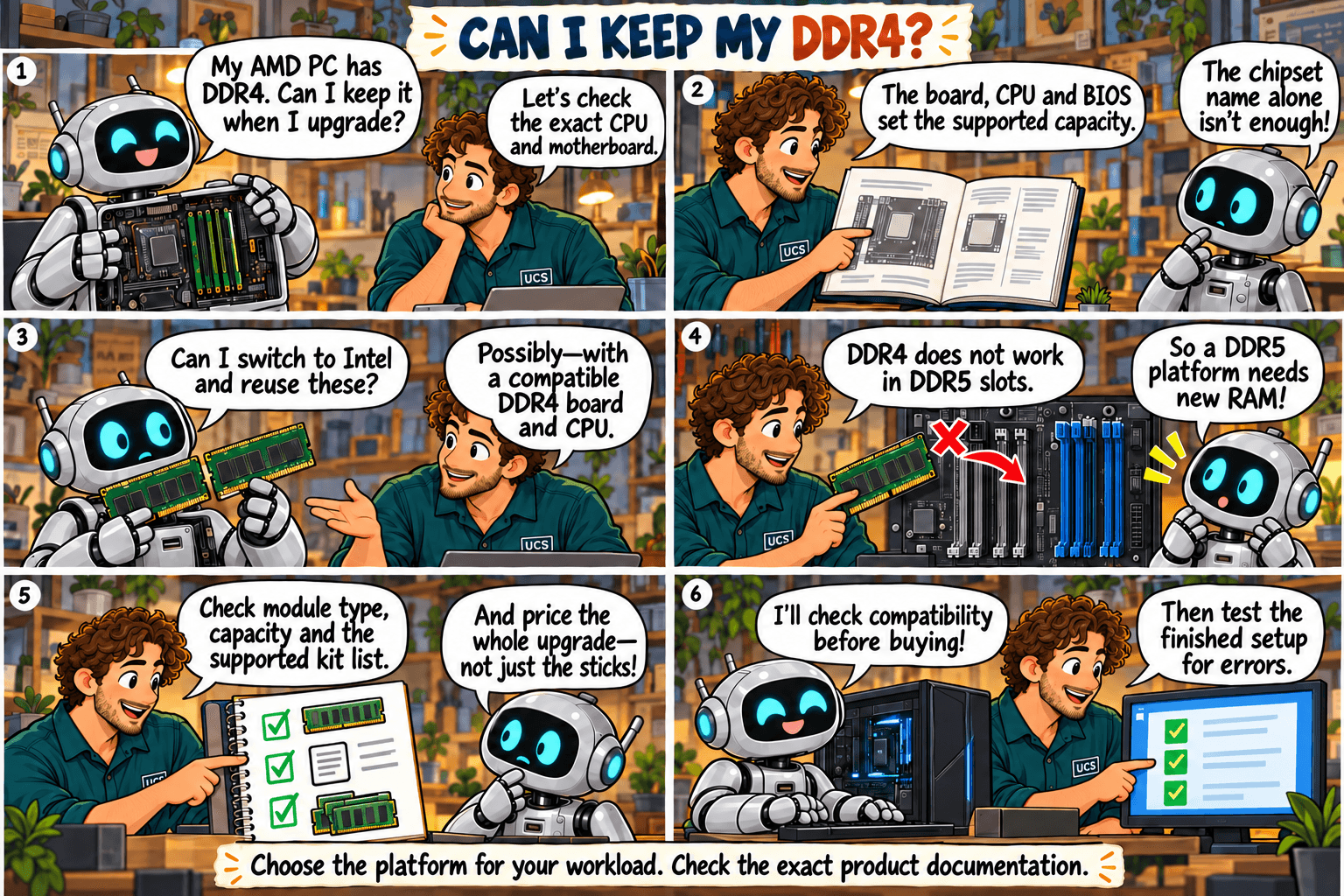
Quick rule: reuse DDR4 only if the new motherboard and CPU both support your exact modules.
Common mistake: assuming the same DDR generation guarantees compatibility, or that switching CPU brand gives you more memory capacity.

What it means

  • DDR4 does not fit a DDR5 slot. The two generations use different slots and voltages.
  • The CPU brand does not settle it. Some Intel platforms support DDR4, but only on a DDR4 motherboard.
  • Moving from an AMD DDR4 desktop to a DDR5 one means new RAM, plus a new CPU and motherboard.
  • Maximum capacity is set by the CPU, motherboard and BIOS together. The chipset name alone does not tell you.
  • Server memory (registered) does not work in ordinary desktops.

What to check

  • Identify the exact CPU and motherboard models, not just the brand or chipset.
  • Check DDR generation, module type, capacity per module and total capacity.
  • Read the motherboard’s memory support list (QVL) and BIOS notes. The list shows tested kits and may not cover every kit that works.
  • Check which BIOS version is required before you buy.
  • Compare the total cost of CPU, motherboard and RAM against keeping your current system.

Our recommendation

Keep your DDR4 if a supported upgrade handles your workload at a lower total cost. Otherwise buy a tested CPU, motherboard and RAM combination.

Not sure what fits? Send us your computer model and what you use it for. We check compatibility before you buy.

Ask us to check

All episodes

Sources

Technical review: 5 October 2026. General guidance. Check the documentation for your exact hardware before you buy. Full notice.

32 GB or 256 GB: How much RAM do you actually need?

Robot’s RAM Upgrade · Episode 1 of 10

The question: will more RAM make my computer faster, or am I paying for capacity I won’t use?

32 GB or 256 GB? How much RAM does Robot really need?
Select the sketch to open it full size.

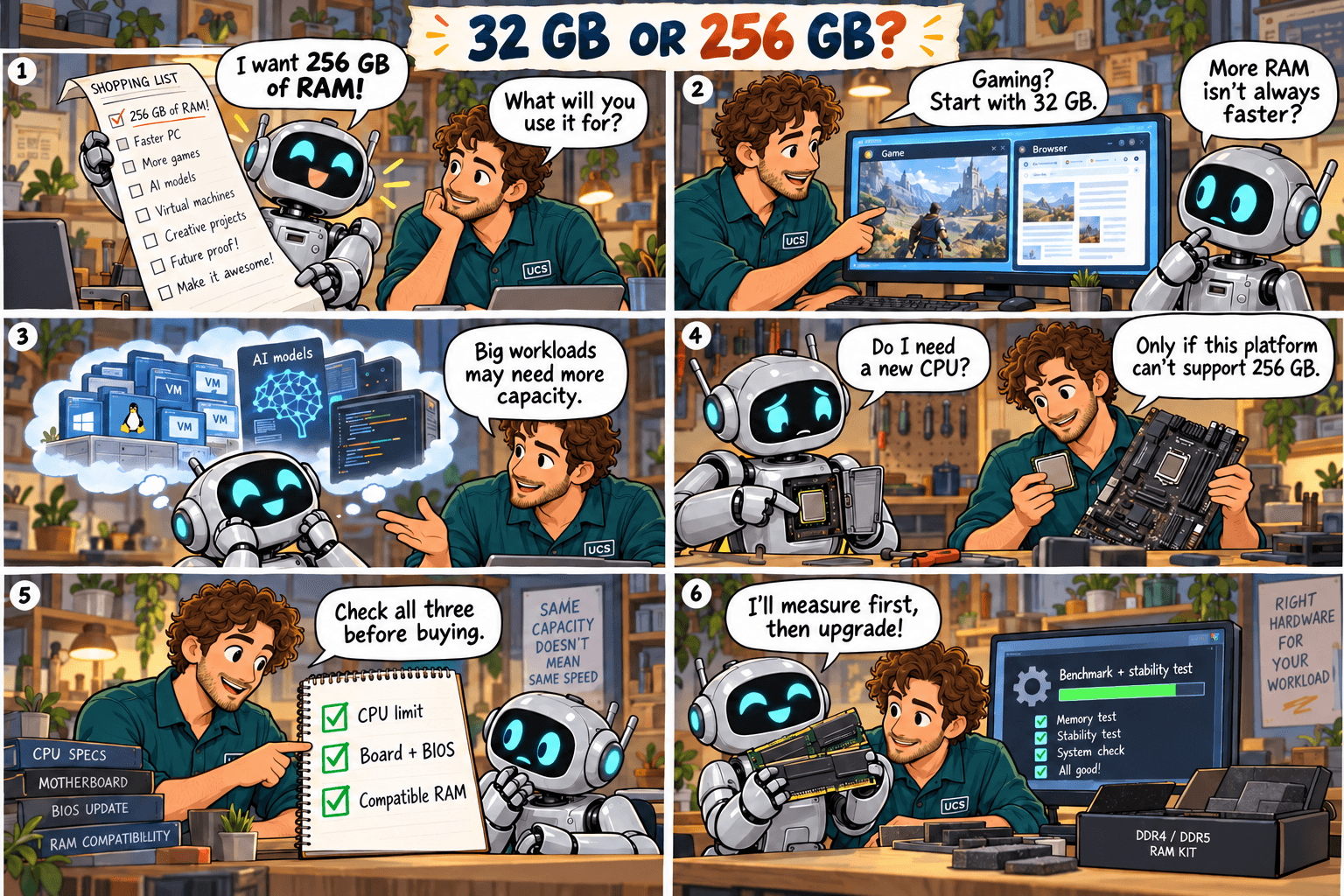
Quick rule: buy RAM to fit your workload. Capacity you never fill does not make a computer faster.
Common mistake: buying 256 GB because it sounds faster, with no evidence the workload needs it.

What it means

RAM is the computer’s working space. When it runs out, the operating system moves data to storage, which is far slower. More RAM fixes that problem and no other.

  • Gaming: start at 32 GB.
  • Office work: often less.
  • Large projects, several virtual machines, specialist data work: often much more.

Graphics card memory is separate. Adding system RAM does not increase it.

What to check

  • Run your busiest normal workload and read memory usage. On Windows: Task Manager → Performance → Memory.
  • Note whether slowdowns happen when memory is nearly full.
  • Find your exact computer or motherboard model, CPU, installed modules and supported capacity.
  • Budget for installation and any other parts the upgrade requires.

Our recommendation

If 32 GB fits your work, spend the savings on the part that is slowing you down. If you regularly run out, buy a supported upgrade with room to grow. For 256 GB, confirm your CPU and motherboard support it first.

Not sure what fits? Send us your computer model and what you use it for. We check compatibility before you buy.

Ask us to check

All episodes

Sources

Technical review: 5 October 2026. General guidance. Check the documentation for your exact hardware before you buy. Full notice.